
01 / Archive
The record has a place.
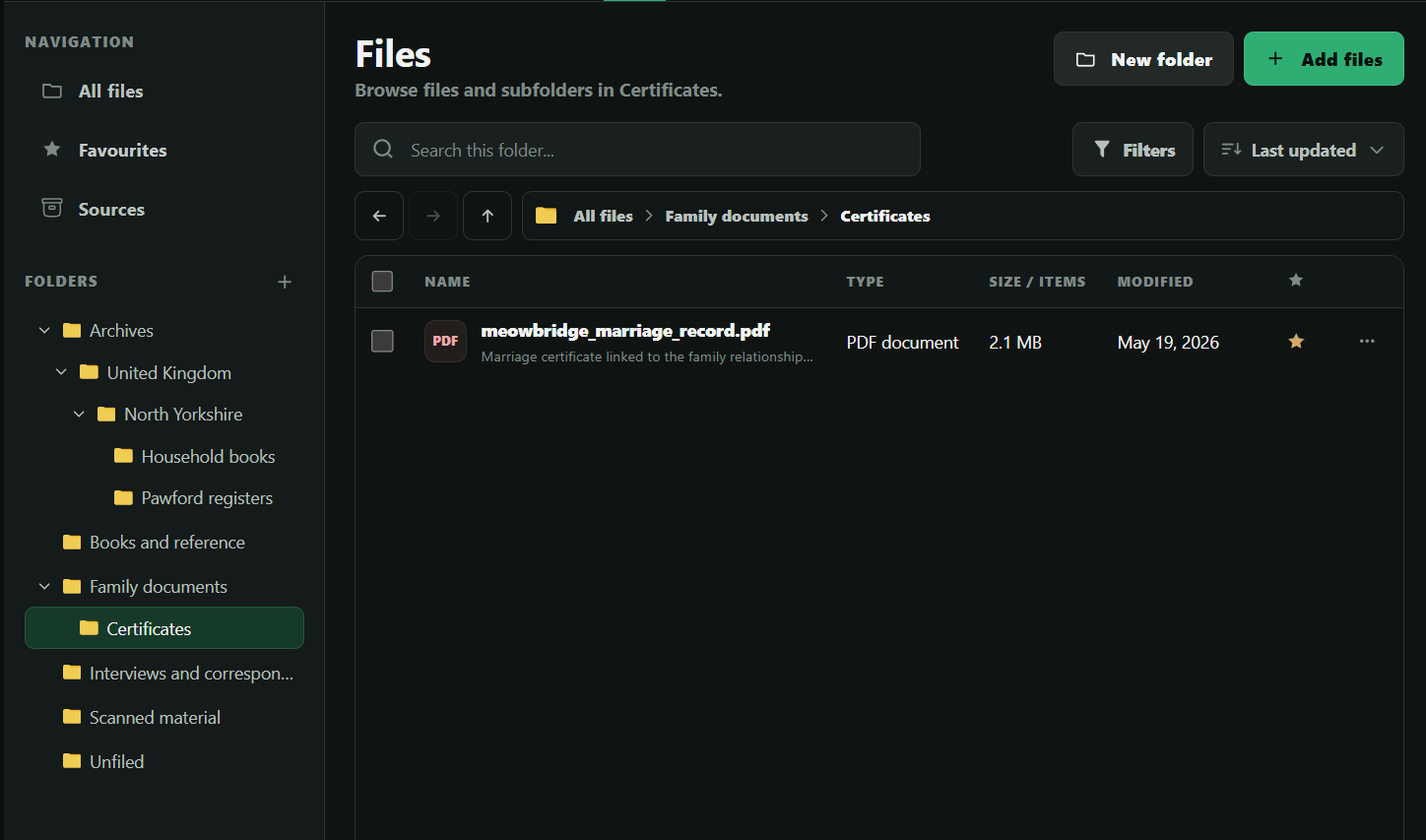
The Meowbridge marriage certificate lives with the project’s family documents, where it can be found again alongside its linked people and research.
GeneoGraph brings your family tree, people, photos, documents, notes, places and visual research into one connected workspace—so you spend less time managing separate tools and more time understanding your family history.
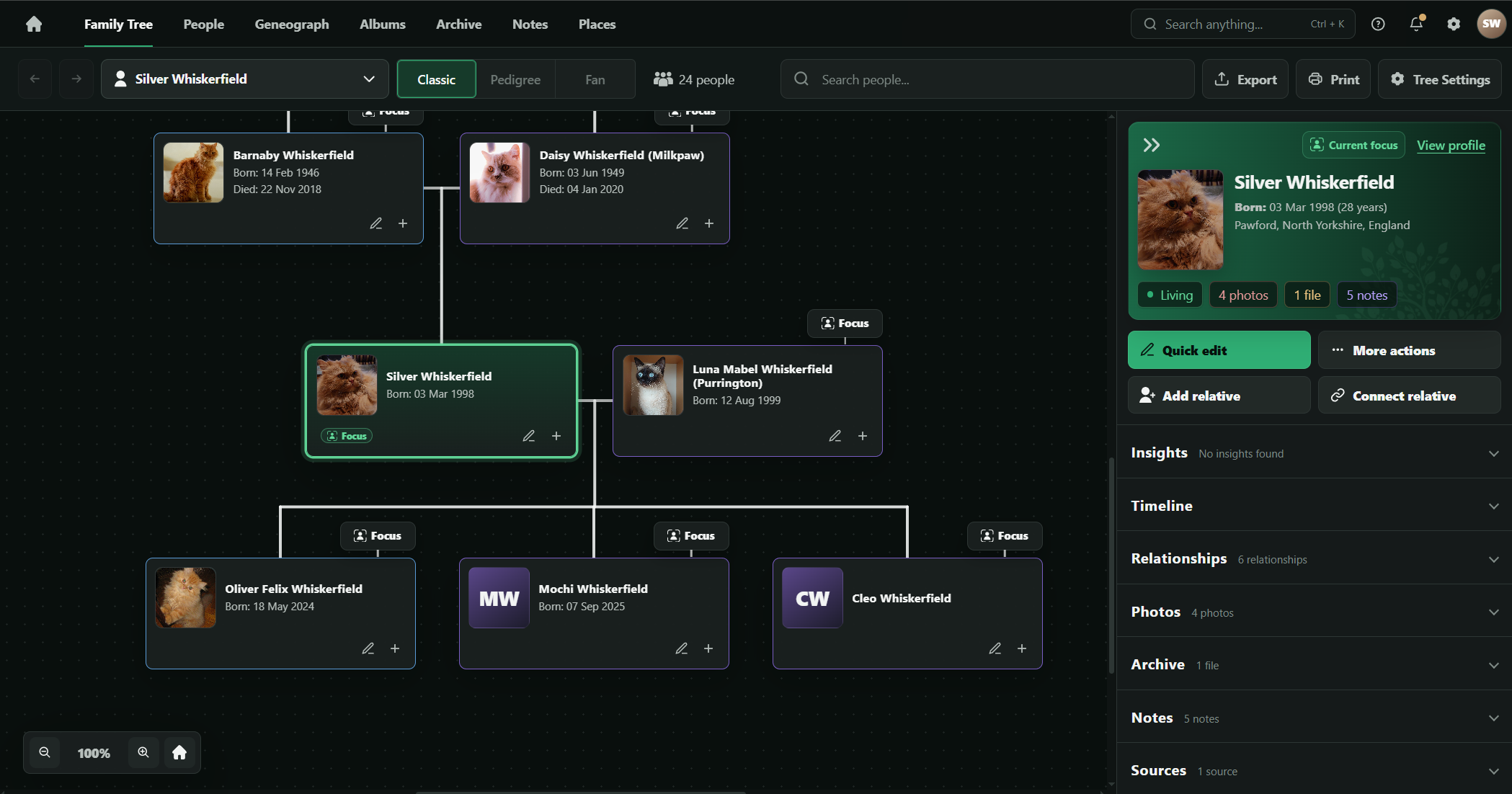
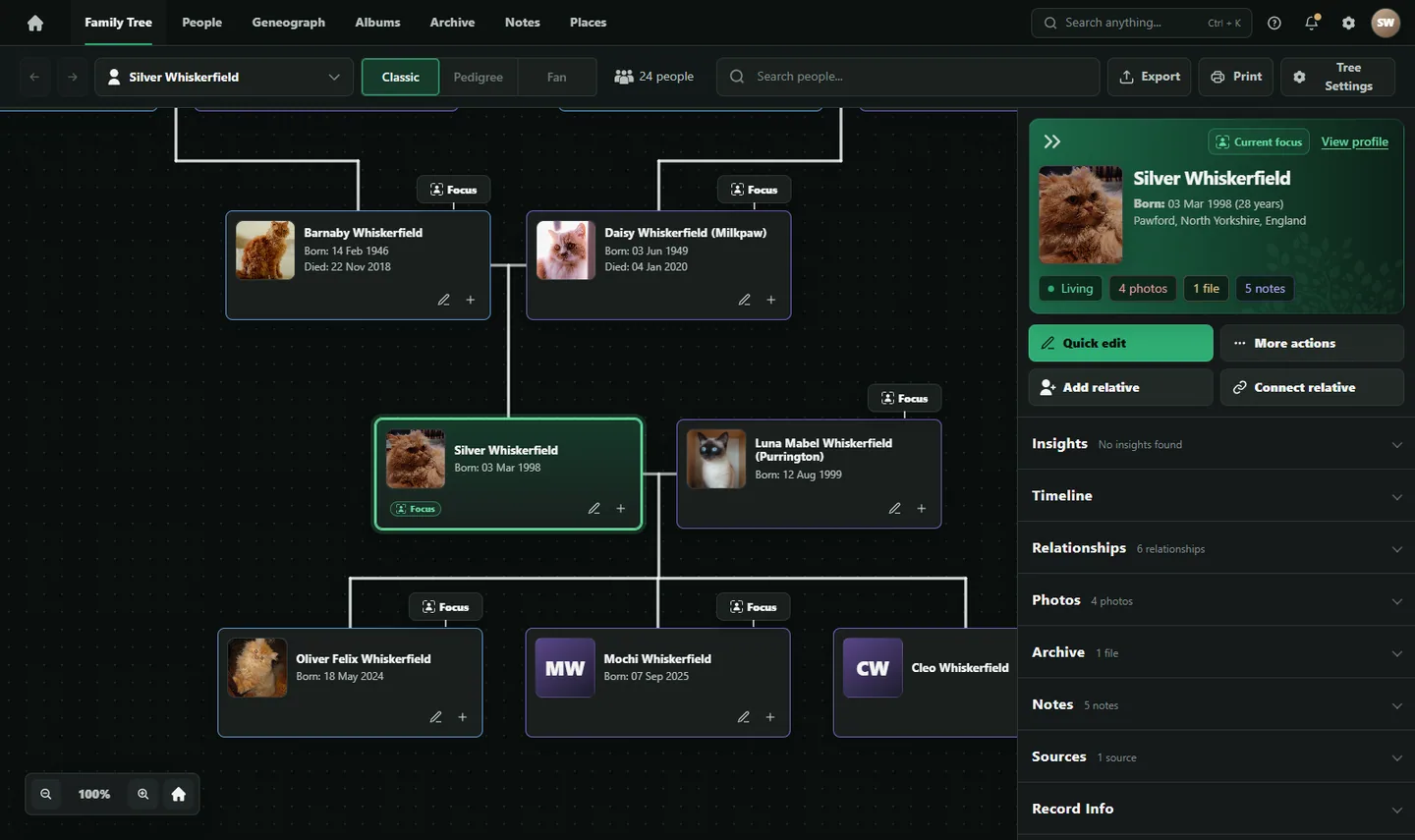
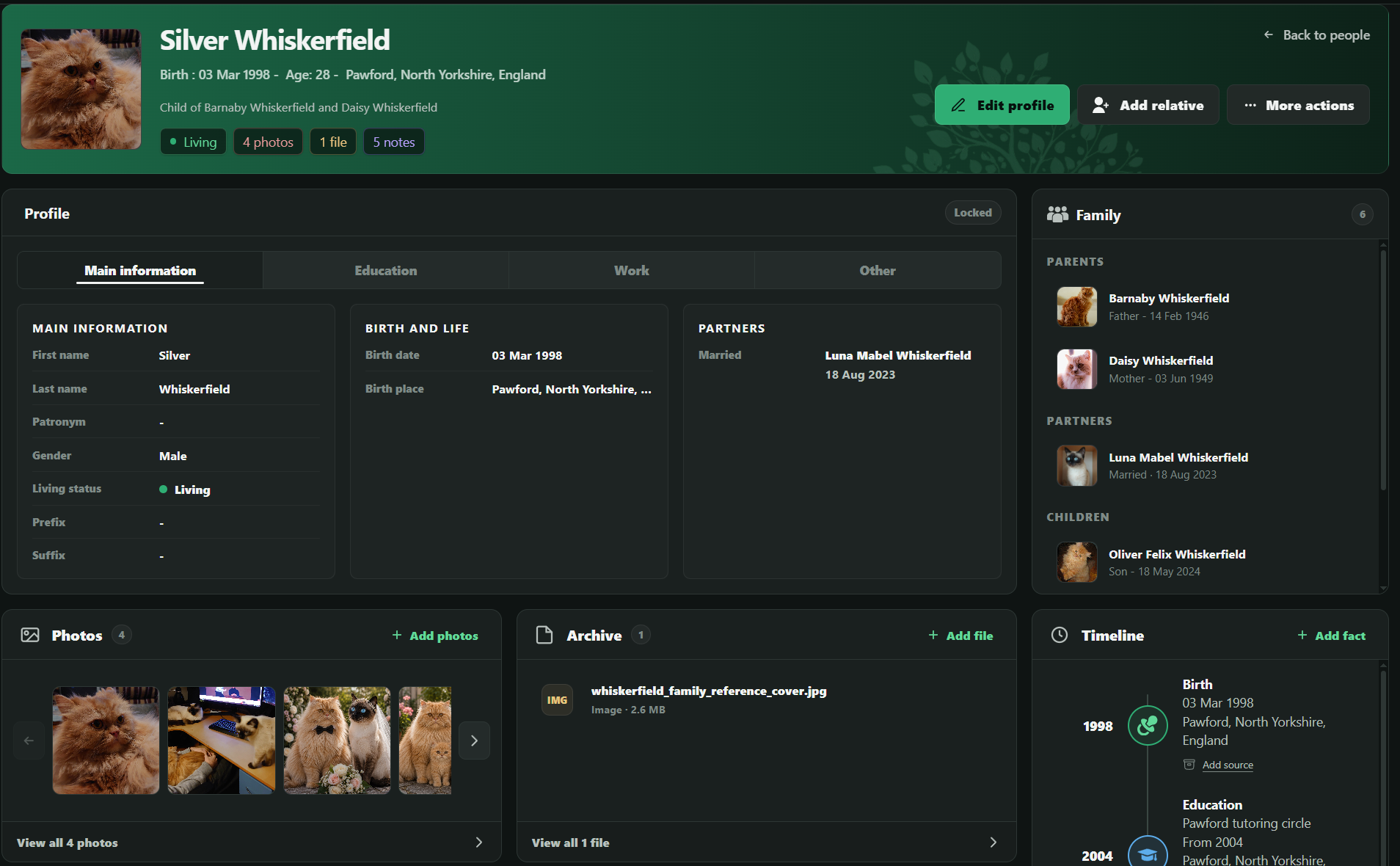
Silver appears in the tree with his parents, Luna and their children. Open his Profile to see the details, relatives and linked photos, files and notes. The tree stays clear, while the research details are easy to access.
Scans in a folder, family photographs elsewhere, research questions in scattered notes — it’s easy to lose track of what you already found. GeneoGraph gives each kind of material its own place: files and sources in Archive, photos in Albums and working thoughts in Notes, all within the same project.
The Meowbridge marriage certificate lives with the project’s family documents, where it can be found again alongside its linked people and research.
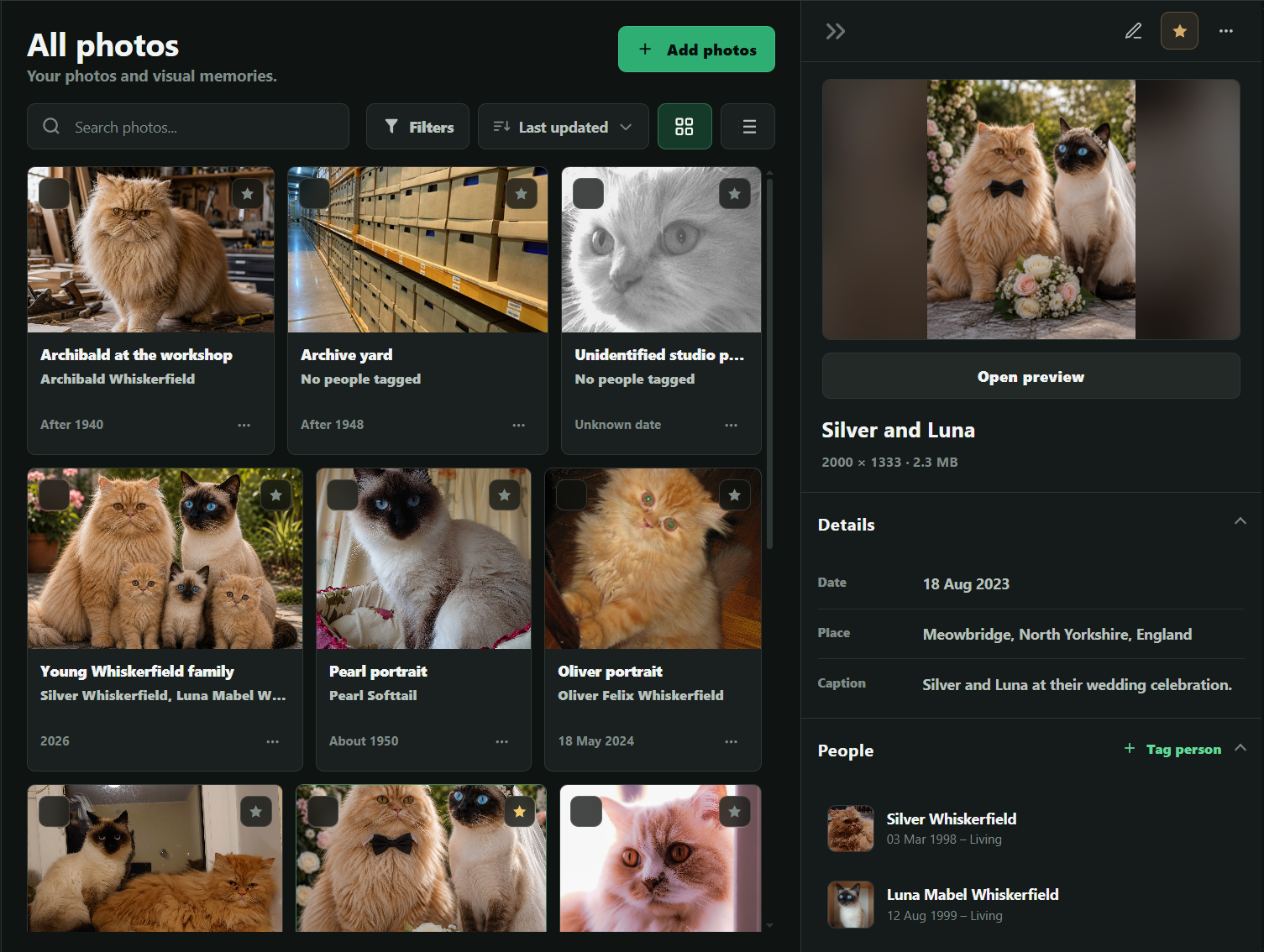
The Silver and Luna photograph sits in Albums with its date, Meowbridge location and connections to the people in it.
Daisy’s note asks who her father was, records Barnaby Whiskerfield as a possible lead rather than a conclusion, and keeps observations, linked material and next steps together.
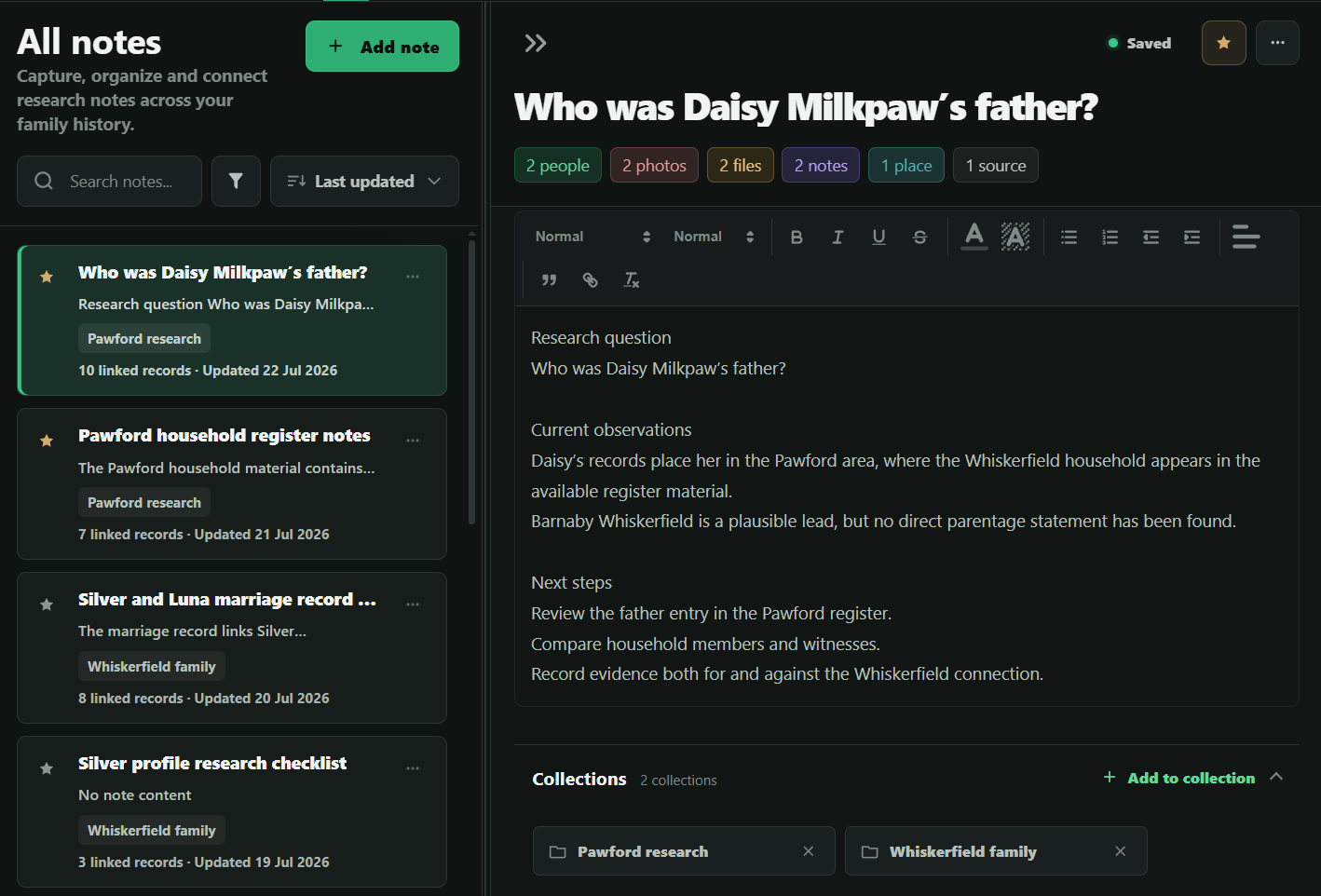
Archive, Albums and Notes give different materials their own homes. Link them to the person, and you can find the family photograph and working notes directly from the family tree record while each item remains in its proper place.
Connections work both ways: a file can also identify the people or events it relates to, so evidence does not lose its family context.
Born 3 Mar 1998 in Pawford
Barnaby and Daisy are his parents. Luna is his partner.
Research connected to Silver
Start with the person or the material — the link keeps their context together.
Start with people already in your project, then arrange them freely with photographs, places and research notes. Shape a board that explains a complicated branch, adds context to a family story, or presents the family in a way a standard tree cannot.
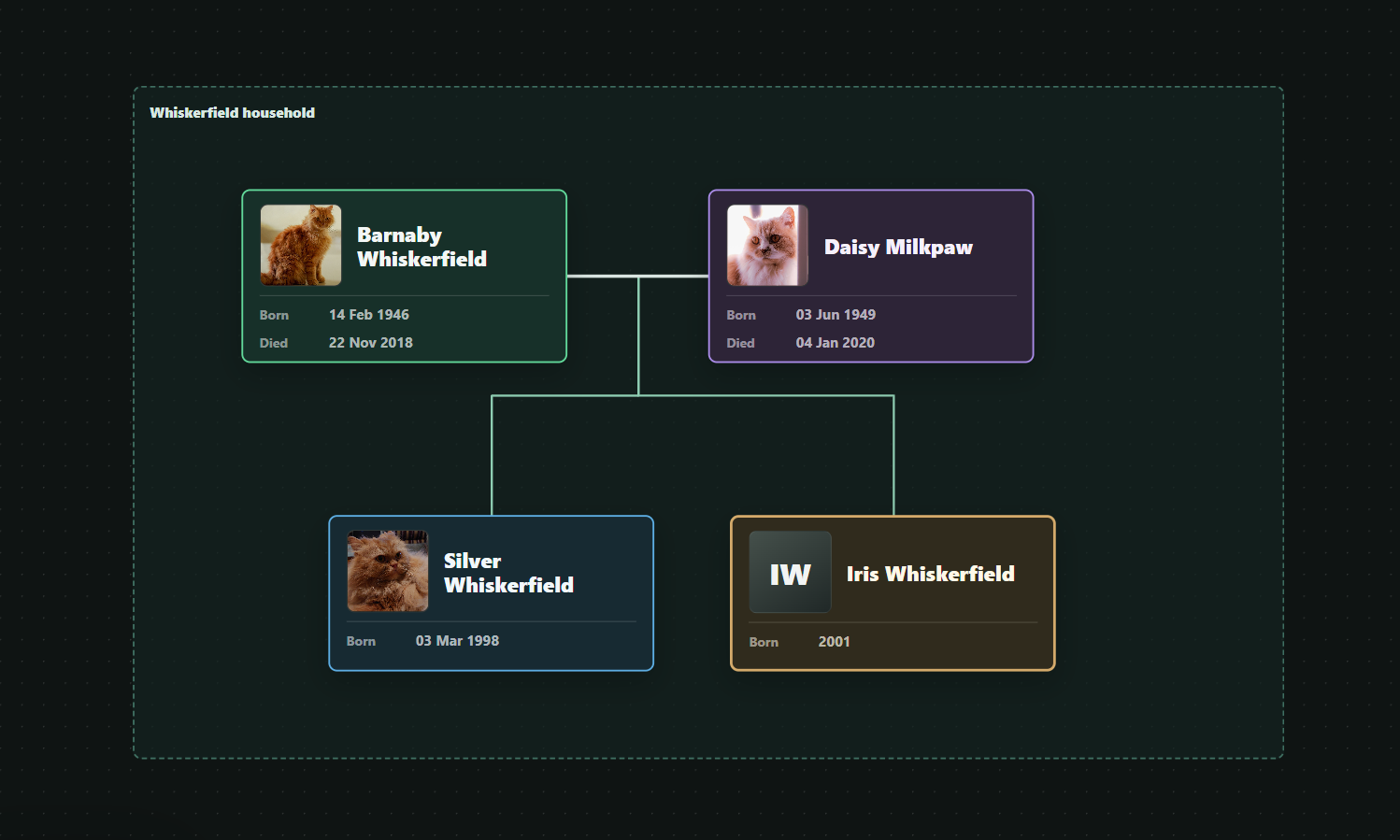
Move and group people from your project, then place photographs, text and research context where they help explain the family. The board gives you room to compose a view that a fixed tree layout cannot.
Add a possible person or relationship with its supporting note on the board, without treating it as a settled Family Tree conclusion.
See the relationships, then open each person’s details.
Keep records, photos and working thoughts in their proper places.
Follow related research across the same project.
Arrange a family visual or investigate a possible branch.
GeneoGraph’s direction is local projects and portable data, with optional online services later — not a requirement to hand over your research data.
Open the Whiskerfield sample project and try the research flow yourself. Find Silver in the Family Tree, explore the material around his family, then open Geneograph to arrange a different view. See how the parts of the project work together.
Explore the sample projectMove from his Family Tree card to his full Profile.
Visit the family photograph in Albums, the marriage record in Archive, and the working note in Notes.
Open the Whiskerfield Geneograph board and explore a possible branch.
Create a Geneograph board, arrange people from the project and add your personal context.
Your demo changes reset when you reload the page, no data is stored.
Built from real genealogy research.
GeneoGraph grew from hands-on family-history work and the challenge of keeping people, records, notes and unresolved questions connected. Join the Research Group for development updates, opportunities to test new features, and a way to share feedback as the workspace takes shape.